
サイドバー
広告
windows:hyper-v:test-exec:index.html
05.テストの実施
作成したテスト環境でテストを実施します。
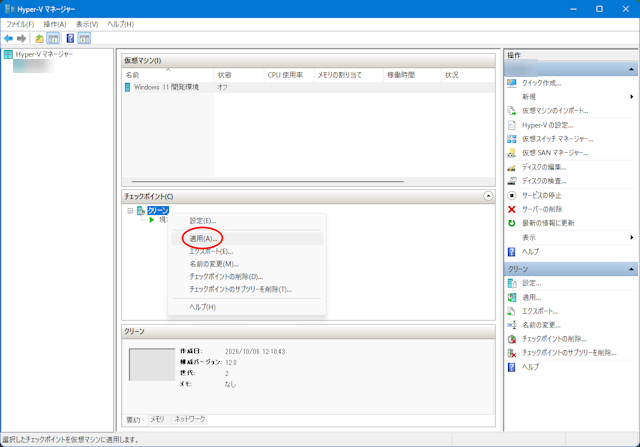
Hyper-V マネージャーのチェックポイントで右クリック➡『適用(A)…』でクリーン状態の環境を仮想マシンに適用します。
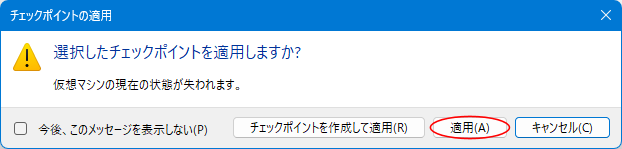
『適用(A)』で仮想マシンの現時点の状態が指定したチェックポイントで上書きされます。
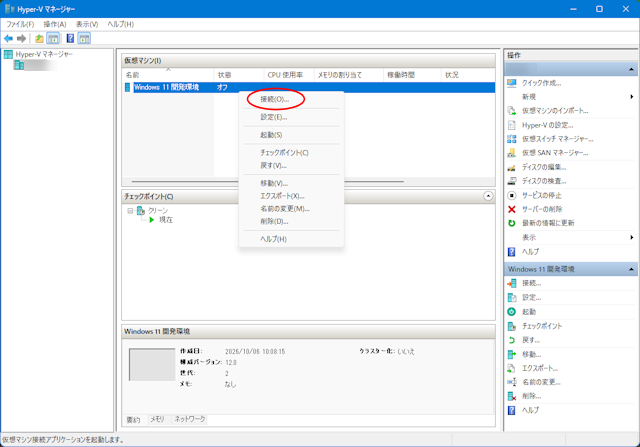
仮想マシンを右クリック➡『接続(O)…』で仮想マシンに接続します。
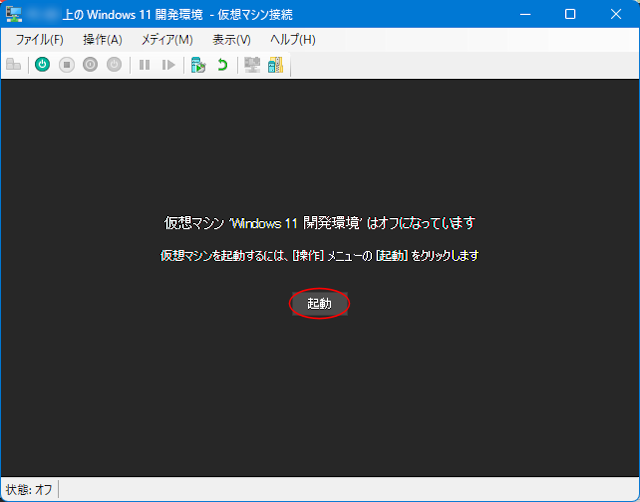
『起動』で仮想マシンを起動します。
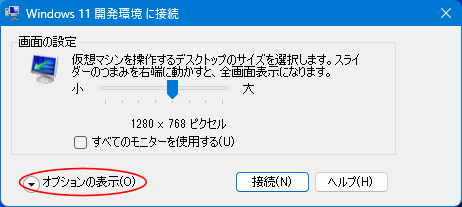
ホストマシンのドライブを仮想マシンからアクセス(共有)できるようにするため『オプションの表示(O)』をクリックします。
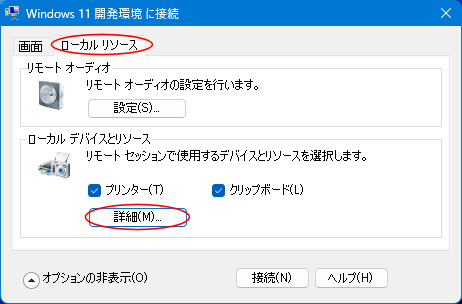
ローカルリソースタブからローカルデバイスとリソースの『詳細(M)…』をクリックします。
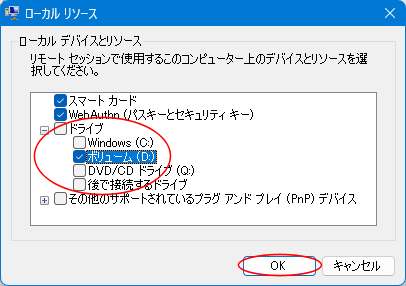
アクセス(共有)したいドライブを✅します。
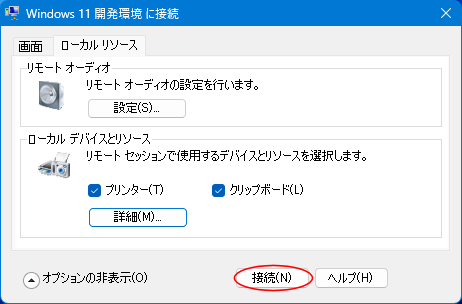
『接続(N)』で仮想マシンに接続します。
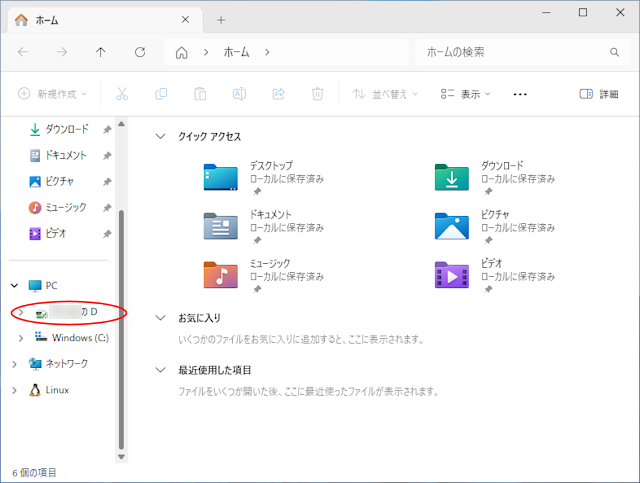
ホストマシンのドライブが仮想マシンでアクセス(共有)できます。
windows/hyper-v/test-exec/index.html.txt · 最終更新: by プログレス合同会社
特に明示されていない限り、本Wikiの内容は次のライセンスに従います: CC Attribution-Share Alike 4.0 International


